Customize boot and startup

Change screen resolution, colors and background image.
Some time ago, I recommended and used StartUp-Manager for tweaking the Grub boot loader and system loader, but this project isn't updated any longer. I found some very valid replacements which work even better.

Grub Customizer


With Grub Customizer you can tweak the new GRUB 2 boot screens, select the default boot entry, change the menu visibility and timeout, set kernel parameters, disable recovery entries.

Install instructions

sudo add-apt-repository ppa:danielrichter2007/grub-customizer
sudo apt-get update
sudo apt-get install grub-customizer

Plymouth Manager

With Plymouth Manager you can change the startup animation, for example, put one which fits with your brand new Linux Mint.
sudo apt-add-repository ppa:mefrio-g/plymouthmanager
sudo apt-get update
sudo apt-get install plymouth-manager

Cinnamon Desktop

Cinnamon is a fork of the GNOME Shell, created by developers of the Linux Mint project.
It recovers the visual aspects of the old GNOME 2 desktops, but is more up-to-day, includes it's own visual effects and contains some details of GNOME 3.

Install instructions

If you are using Linux Mint, you can install Cinnamon directly from their repositories, but if you want to use the latest build and/or you want to install it in another system, use the following PPA repository.
sudo add-apt-repository ppa:merlwiz79/cinnamon-ppa
sudo apt-get update
sudo apt-get install cinnamon

# Install the weather extension
sudo apt-get install cinnamon-extension-weather

# Install some additional themes
sudo apt-get install git-core
cd /tmp && git clone https://github.com/linuxmint/cinnamon-themes.git
cd cinnamon-themes
./test

Troubleshooting

Not every software is perfect, and sometimes it could happen that your desktop manager gets frozen, for example a window gets paint and stays in the same place even if it's already closed.
There're several options to recover full control again:
  1. Use the Troubleshoot menu from the applet Better Cinnamon Settings which offers an entry Restart Cinnamon.
  2. Use Alt-F2 key combination to open Cinnamons internal command terminal and type 'r' followed by return.
  3. If you can't access the above two options (rare cases) you might want to restart Cinnamon from a terminal.
    • At this point, you might not even be able to open a terminal from the desktop, so you'll have to enter a system one with Ctrl-Alt-F1.
    • Make sure you know the display used by Cinnamon (normally it's 0, but you can verify it with 'w' command and the data in the FROM column:
      me~ $ w
       17:43:09 up 20:41,  6 users,  load average: 0.24, 0.23, 0.18
      USER   TTY      FROM             LOGIN@   IDLE   JCPU  PCPU   WHAT
      me     pts/0    :0.0             15:37    2:04m  0.24s 23.88s gnome-terminal
    • Export this value into the DISPLAY variable.
      export DISPLAY=:0.0
    • Finally, restart Cinnamon:
      cinnamon --replace
    • When you switch back to the desktop with Ctrl-Alt-F7 you should see an operative desktop after a while.
  4. The last option, if everything else fails, might be that it's not Cinnamon, but the underlying X system which is wrong, and you can reset this with Ctrl-Alt-Backspace.
    But this way, you'll have to login again into your session, which means, all open programs got closed.

Managing printers from CUPS web interface

Installed printers are listed here.
Recently, I had problems with my printer settings, I wanted to change the duplex setting and wanted to install a new network printer, but without success.
The problem I have is that in Linux Mint the Printers configuration applet fails, crashes and doesn't offer all options.

But finally I found a way. Linux Mint, like other distributions use the CUPS as printing system and it offers a web based administration interface.

Just point your web browser to http://localhost:631/. There you can add and manipulate all kind of printers and manage the print queues as well.

This is a nice workaround, until these options will be supported in the printer settings applet.

Sweet Home 3D : Prevent crashes and change icon

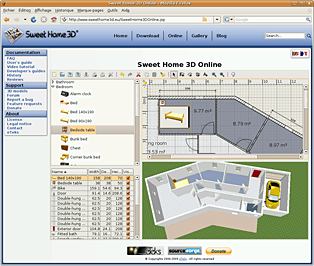
Sweet Home 3D is the best interior design application that I have found so far for Linux. It is easy to place your furniture on a house 2D plan, and render the whole scene in 3D.
The website gives you the possibility to run the application online without installation, as being written in Java.
Unfortunately there are two points that bothered me for a while and that I fixed finally:
  1. The application crashes every time you choose the preferences or the 3D rendering from the menu.
  2. The application icon has a very low resolution and looks awful when rendered by the application launchers.

Install instructions

Sweet Home 3D can be installed from the GetDeb application repository, execute the following in the shell:
sudo -v
# Enable GetDeb Application repository:
sudo echo "deb http://archive.getdeb.net/ubuntu oneiric-getdeb apps #GetDeb repository extends the official repositories" > /etc/apt/sources.list.d/GetDeb-Apps-oneiric.list
# Add the repository GPG key
wget -q -O- http://archive.getdeb.net/getdeb-archive.key | sudo apt-key add -
# Update package information
sudo apt-get update

# Install Sweet Home 3D package
sudo apt-get install sweethome3d

Prevent crashes

Sweet Home 3D checks whether computing off-screen 3D images is supported by Java 3D on your computer, but the detection test itself makes Sweet Home 3D crash!

A special flag can be passed to the Java command line inside the launcher script.
The following shell commands change the original script, and leave a backup.

sudo -v
sed -i.bak 's/java /java -Dcom.eteks.sweethome3d.j3d.checkOffScreenSupport=false /' /usr/bin/sweethome3d

Change icon to higher resolution

Higher resolution icons can be found inside the source code, the following shell commands replaces the low resolution one with a higher one:
sudo -v
cd /tmp
wget -q http://sweethome3d.cvs.sourceforge.net/viewvc/*checkout*/sweethome3d/SweetHome3D/src/com/eteks/sweethome3d/viewcontroller/resources/help/images/sweethome3d.png
sudo cp /tmp/sweethome3d.png /usr/share/pixmaps/sweethome3d.png