Application launcher Kupfer

For some time I used Gnome-Do as application launcher, for its beautiful design and huge amount of plugins which enhance its features. But there were to things which bothered me lately:
  • Gnome-Do's Skype plug-in stopped worked time ago
  • Some applications that I removed already, still showed up in the search results
  • Icons weren't refreshed.
All recommended tips that I found in forums (remove certain folders from Gnome-Do) didn't help.
But in one of these threads they commented about another application: Kupfer.
Tried that one, and it works like a charm, connection to Skype works, almost has all plugins that I used from Gnome-Do and seems to integrate with Gnome, KDE and other systems.

Install instructions

Kupfer can be installed right away from the universal repository:
sudo apt-get install kupfer 
In it's preferences you could choose the same key-combination you used with Gnome-Do, and set it's auto-start flag.

Changing wallpapers with Wally

Years ago, I posted about tools for changing your desktop wallpaper automatically.
The best tool I found so far is Wally, which is able not only to rotate through your local wallpaper picture collection, but also obtain them from several online storages like Picasa, Flickr, remote folders, etc.
It permits to define tags to include certain sets of pictures that you like.

Install instructions

Wally can be found in the universe repository of your Ubuntu system.
sudo apt-get install wally

KUbuntu

Wally is available as desktop plugin, so you'll have to enable it in your desktop folder settings.

Ubuntu Oneiric

Ubuntu recently changed the management of the desktop wallpaper, which breaks Wally 2.3.2 (the one which can be found in the repository), it isn't able to replace the wallpaper. To repair this, you'll have to install the .deb package 2.4.3 from the developers website.

Update to Ubuntu 11.10 Oneiric Ocelot

These days, Ubuntu's new release hit the repositories, so I upgraded my three systems as soon as possible to see if some annoying Unity bugs have been solved finally. Here is the resume and the reasons why I'll evaluate to switch to KDE finally: Upgrade
During the upgrades I had two issues:
  1. Emacs got somehow broken on one system y prevented the upgrade process to finish completely. It even said, the process had been aborted, but the only thing missing was the last Cleanup step.
    I removed emacs packages and reinstalled them, then everything went fine.
  2. Screenblanker got stuck on one of my machines during upgrade, so I could hit on any button to enter the last Cleanup step.
    I connected via Remote Desktop to that machine and could finish the process correctly.
Updating custom repositories
As usual, the upgrade process disables all your custom repositories to prevent problems. You'll have to adapt and enabled them by hand, or you might use these instructions to do this with a few commands.
# Become super-user
sudo -i

# Set some variables (these can be changed to adapt to other Ubuntu versions)
export old=natty
export new=oneiric

# Enter repository list folder
cd /etc/apt/sources.list.d/

# Change old distribution list files and store them as newer ones
for sl in *-${old}.list ; do echo "Creating ${sl/${old}/${new}}" ; sed 's/\(.*\) '${old}'\(.*\)/\1 '${new}'\2/' $sl > ${sl/${old}/${new}} ; done

# Enable and remove the "disabled ..." comment
for sl in *-${new}.list ; do echo "Enabling ${sl}..." ; sed -i.bak 's/^# \(.*\) disabled on upgrade to '${new}'$/\1/' $sl ; done

# Check they are all fine
for sl in *-${new}.list ; do echo "Content of ${sl/${old}/${new}}:" ; cat $sl ; done

# Cleanup backup files and old distribution list files (not needed any longer)
rm *-${old}* *${new}.list.bak

Time tracking with Hamster indicator

At work, I find it very handy to track the time I'm spending on some tasks. Especially, if you have to report to someone the time you spend on certain projects or whatever.
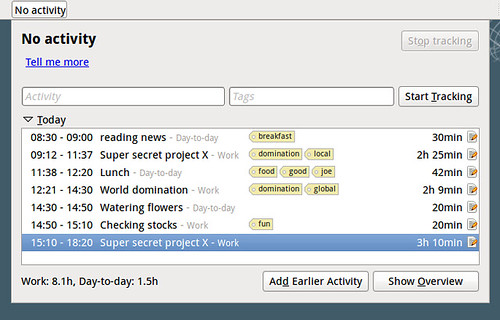
Hamster is such a time tracker that I found to be very useful, easy to use, and enables you to obtain statistics about your daily/weekly/yearly work.

It gives you the possibility to introduce information from the shell, but there's also a graphical indicator available, which fits perfectly with Ubuntu Gnome and Unity.

Install instructions

If you need more details about the following installation and configuration commands, you can consult this article.
# Add repository
sudo add-apt-repository ppa:albertomilone/hamster-indicator

# Add description to repository for easier identification
sudo sed -i.save 's/$/ #Hamster-Indicator Time-Tracker/' /etc/apt/sources.list.d/albertomilone-hamster-indicator-natty.list

# Install Hamster Indicator
sudo apt-get update
sudo apt-get install hamster-indicator

Configuration

The hamster indicator permits to change how and which information to show on the Unity panel.
# Show all possible configuration values and values
gconftool-2 -R "/apps/hamster-indicator"

# Toggle Icon Glow
gconftool-2 --toggle "/apps/hamster-indicator/icon_glow"

# Toggle Show Label
gconftool-2 --toggle "/apps/hamster-indicator/show_label"

# Set enough space for label
gconftool-2 --set "/apps/hamster-indicator/label_length" --type int "20"

Database location

It might be interesting to now, where Hamster stores it's data, for example for backups, or if you want to copy/share the data to another Ubuntu installation.
~/.local/share/hamster-applet/hamster.db