Showing posts with label organization. Show all posts

Time tracking with Hamster indicator

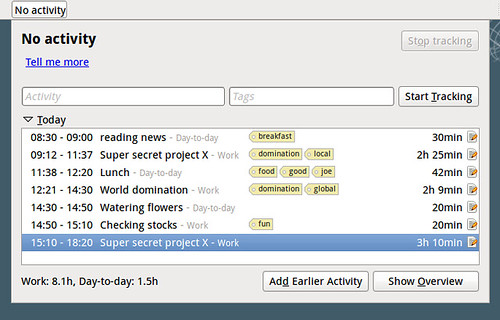
At work, I find it very handy to track the time I'm spending on some tasks. Especially, if you have to report to someone the time you spend on certain projects or whatever.
Hamster is such a time tracker that I found to be very useful, easy to use, and enables you to obtain statistics about your daily/weekly/yearly work.

It gives you the possibility to introduce information from the shell, but there's also a graphical indicator available, which fits perfectly with Ubuntu Gnome and Unity.

Install instructions

If you need more details about the following installation and configuration commands, you can consult this article.
# Add repository
sudo add-apt-repository ppa:albertomilone/hamster-indicator

# Add description to repository for easier identification
sudo sed -i.save 's/$/ #Hamster-Indicator Time-Tracker/' /etc/apt/sources.list.d/albertomilone-hamster-indicator-natty.list

# Install Hamster Indicator
sudo apt-get update
sudo apt-get install hamster-indicator

Configuration

The hamster indicator permits to change how and which information to show on the Unity panel.
# Show all possible configuration values and values
gconftool-2 -R "/apps/hamster-indicator"

# Toggle Icon Glow
gconftool-2 --toggle "/apps/hamster-indicator/icon_glow"

# Toggle Show Label
gconftool-2 --toggle "/apps/hamster-indicator/show_label"

# Set enough space for label
gconftool-2 --set "/apps/hamster-indicator/label_length" --type int "20"

Database location

It might be interesting to now, where Hamster stores it's data, for example for backups, or if you want to copy/share the data to another Ubuntu installation.
~/.local/share/hamster-applet/hamster.db

Mind mapping - Freemind


FreeMind is a premier free mind-mapping software written in Java and therefore a multi-platform high productivity tool.
It claims that its operation and navigation is faster than that of MindManager (a commercial software only for Windows).

A mind map is a diagram used to represent words, ideas, tasks, or other items linked to and arranged around a central key word or idea. Mind maps are used to generate, visualize, structure, and classify ideas, and as an aid in study, organization, problem solving, decision making, and writing.

Install instructions


I highly recommend to install the latest release candidate 0.9.0rc3. Just unpack the archive somewhere and launch freemind with one of the startup scripts for your platform (and of course, make sure you have Java installed).

Automatic updates


If you want to get automatic updates, use Ubuntu's package management.
sudo -s
echo "deb http://eric.lavar.de/comp/linux/debian/ unstable/deb-src http://eric.lavar.de/comp/linux/debian/ unstable/
deb http://eric.lavar.de/comp/linux/debian/ experimental/
deb-src http://eric.lavar.de/comp/linux/debian/ experimental/" > /tmp/freemind.list
mv /tmp/freemind.list /etc/apt/sources.list.d
aptitude update
aptitude install freemind
exit

At the moment, this will install Release Candidate 1-2, not the latest one.

Photo Organizer

Picasa is a free software download from Google that helps you:

  • Locate and organise all the photos on your computer.
  • Edit and add effects to your photos with a few simple clicks.
  • Share your photos with others through email, prints and on the web: it’s fast, easy and free.


It was developed first for Windows, but nowadays it is supported for Linux using the Wine emulation framework.

Install instructions for Ubuntu


sudo -s
wget -q -O - https://dl-ssl.google.com/linux/linux_signing_key.pub | apt-key add -
echo "deb http://dl.google.com/linux/deb/ stable non-free # Google software repository" > /etc/apt/sources.list.d/google.list
aptitude update
aptitude -y install picasa


More instructions on installing Picasa on Linux systems.